Learn how to use the Wowza Video REST API to deliver WebRTC streams to viewers through a CDN for playback over HLS.
You should be familiar with the following concepts:
- API authentication methods. We use JSON web tokens for API authentication. See Authentication for more information.
- Environment variables. We use environment variables for the API version and your JWT in the cURL API request examples in this topic to make it easier for you to copy, paste, and run commands in your Terminal or Command Prompt window. If you don't set environment variables for these values, you'll need to manually enter the correct values in the code samples throughout this tutorial. See Tools for testing the API for instructions.
You should choose between the following two workflows:
- Decide between the live stream or transcoder workflow. See Decide between a live stream or transcoder workflow for more information about these workflows.
Live stream workflow
Create a live stream that receives a WebRTC source by sending a POST request to the /live_streams endpoint.
You can use the following sample request, making sure to:
- Set
encodertoother_webrtc. - Set
aspect_ratio_heightto1280. This is the recommended value for WebRTC streams. - Set
aspect_ratio_widthto720. This is the recommended value for WebRTC streams. - Set
broadcast_locationto the region that's closest to your video source. - Set
delivery_methodtopush. Wowza Video doesn't supportpullorcdnconnections for WebRTC. - Change any values unique to your broadcast, using the API reference documentation as a resource. See the Endpoint Reference button below.
curl -X POST \
-H "Content-Type: application/json" \
-H "Authorization: Bearer ${WV_JWT}" \
-d '{
   "live_stream": {
     "aspect_ratio_height": 720,
     "aspect_ratio_width": 1280,
     "billing_mode": "pay_as_you_go",
     "broadcast_location": "us_west_california",
     "delivery_method": "push",
     "encoder": "other_webrtc",
     "name": "MyWebRTCStream",
     "transcoder_type": "transcoded"
   }
}' "${WV_HOST}/api/${WV_VERSION}/live_streams"The response includes:
- An
idfor the live stream you'll use in the next step. source_connection_informationyou'll use in the next step to configure the WebRTC publish page.sdp_url,application_name, andstream_name.
- A
urlin thehosted_pageobject. You'll give this to your viewers to watch the stream.
{
   "live_stream": {
     "id": "1234abcd",
     "name": "MyWebRTCStream",
     ...
     "encoder": "other_webrtc",
     ...
     "source_connection_information": {
       "sdp_url": "wss://[subdomain].entrypoint.video.wowza.com/webrtc-session.json",
       "application_name": "app-30zl5349",
       "stream_name": "32a5814b"
     },
     ...
     "hosted_page": {
       "enabled": true,
       "title": "Hosted player page",
       "url": "https://player.video.wowza.com/qa/g7xr79xw/player.html",
       "sharing_icons": true,
       ...
        }
   }
}Before you can connect to the stream through the WebRTC publish page in the next step, you need to start the live stream. You'll need the [live_stream_id] returned in step 1.
curl -X PUT \
-H "Authorization: Bearer ${WV_JWT}" \
"${WV_HOST}/api/${WV_VERSION}/live_streams/[live_stream_id]/start"With the live stream started, you can now configure the WebRTC publish page as the source of the stream.
Go to wowza.com/webrtc/publish and grant access to your camera and microphone when prompted.
infoThe WebRTC hosted publish page is supported on the latest versions of Chrome and Safari, as well as Edge version 79 and later.
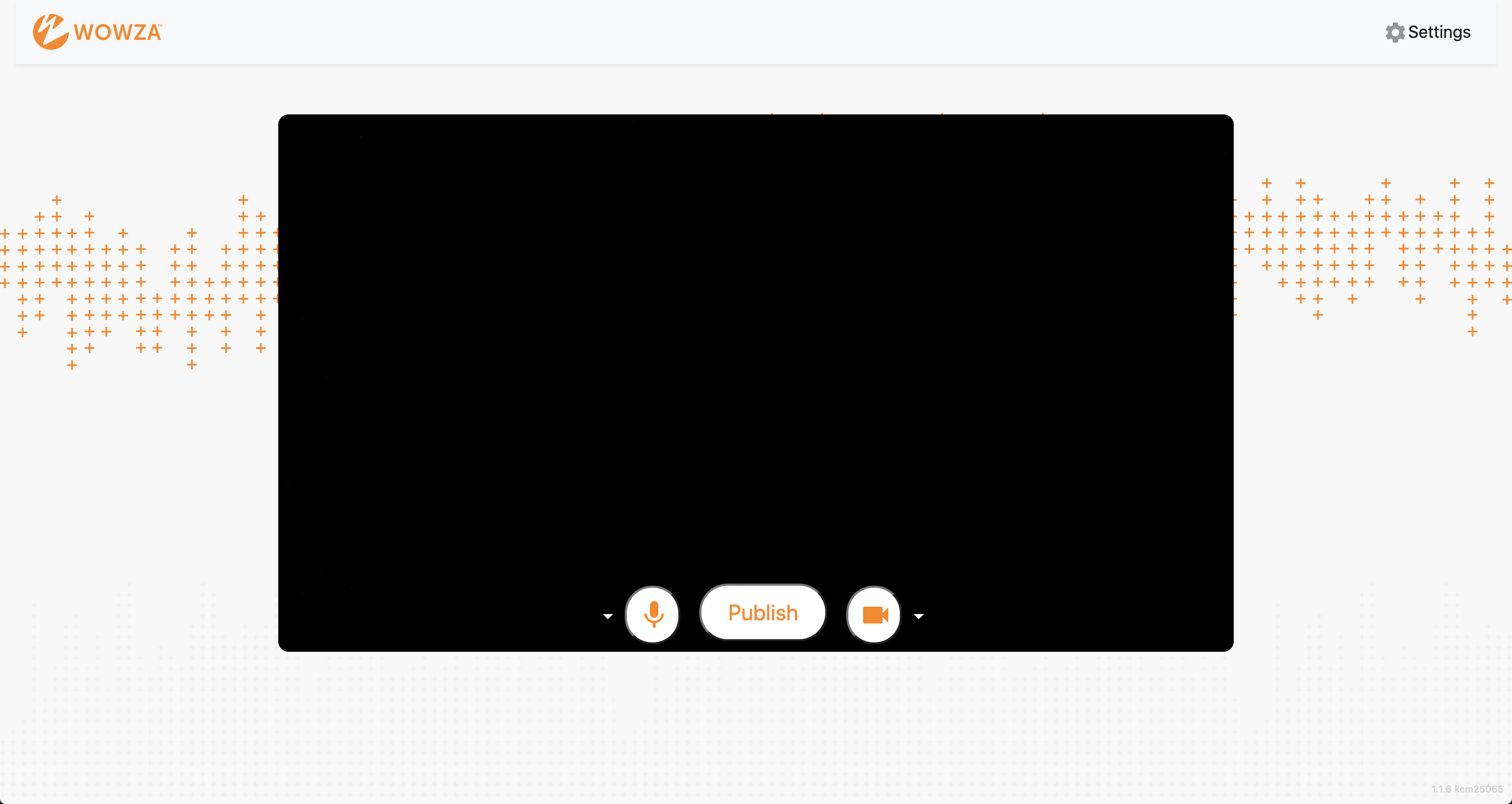
Click the Settings button on the upper-right corner of the page.
Specify the following settings:
- SDP URL – The
sdp_urlfrom the WebRTCsource_connection_informationobject. - Application Name – The
application_namefrom the WebRTCsource_connection_informationobject. - Stream Name – The
stream_namefrom the WebRTCsource_connection_informationobject. - Audio Bitrate – You can leave Audio Bitrate set to the default value, 64.
- Video Bitrate – You can leave Video Bitrate set to the default value, 3500.
- SDP URL – The
Close the Settings dialog box to apply your changes.
To change which microphone to use, click the arrow next to the microphone icon.
To change the video source, click the arrow next to the video camera icon. To share your screen, select Screen Share.
info- The video source can't be changed after the broadcast is started.
- Screen share functionality isn't supported on mobile devices or Safari.
Click Publish.
Now that you have configured your source, you can fetch a thumbnail that shows a frame of the playing stream to visually confirm the stream is playing. You'll need the [transcoder_id] returned in step 1.
curl -X GET \
-H "Authorization: Bearer ${WV_JWT}" \
"${WV_HOST}/api/${WV_VERSION}/transcoders/[transcoder_id]/thumbnail_url"Alternatively, you can use the playback_url to configure the stream for playback in an HLS-compatible player. The URL is returned in a request to fetch stream target details. See the API reference for more information about these endpoints.
To avoid incurring additional billing charges, remember to stop the transcoder after the stream broadcast is over.
curl -X PUT \
-H "Authorization: Bearer ${WV_JWT}" \
"${WV_HOST}/api/${WV_VERSION}/transcoders/[transcoder_id]/stop"