# Send a stream from Wowza Streaming Engine to Wowza Video for transcoding using Wowza APIs
With Wowza Streaming Engine™ media server software version 4.2 and later and the Wowza Video™ service, you can send single bitrate streams from Wowza Streaming Engine to Wowza Video for adaptive bitrate transcoding and delivery to viewers over the
Wowza CDN edge network. This workflow allows you to use Wowza Video's high-performance servers and high-bandwidth networks for the heavy
lifting of transcoding before delivering the stream to viewers.
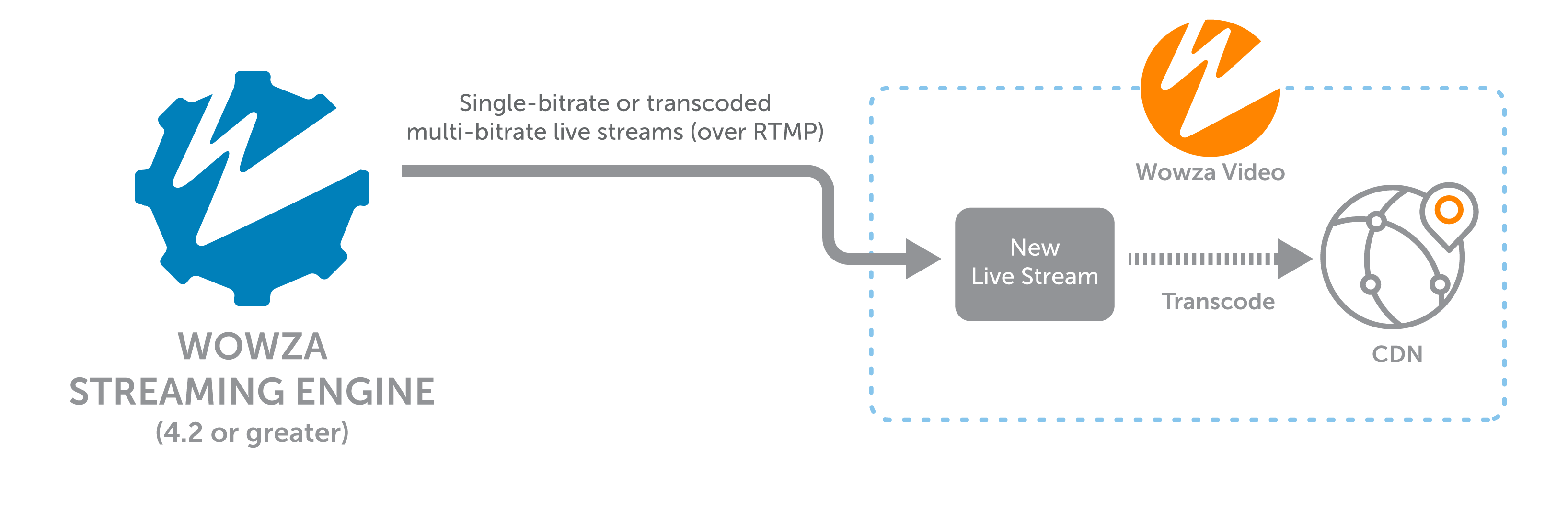
In this article, you can learn how to use the Wowza Video REST API and the Wowza Streaming Engine REST API to set up a live application in Wowza Streaming Engine to send a stream to Wowza Video for transcoding.
info
* The instructions in this article are meant for use with Wowza Streaming Engine versions 4.8.27 and later. If you're using an earlier version of Wowza Streaming Engine, see Send a stream from Wowza Streaming Engine to Wowza Video Legacy for transcoding using Wowza APIs.
* Wowza Streaming Engine 4.7.4 has a known error that may break the stream target functionality for sending streams to Wowza Video for transcoding. We recommend updating to Wowza Streaming Engine 4.7.5 or later. For more information, see Wowza Streaming Engine 4.7.4
may experience problems sending streams to Wowza Video for transcoding.
* For a UI-based version of this workflow, see Send a stream from Wowza Streaming Engine for transcoding in Wowza Video.
## Before you start
Before you start, you should be familiar API authentication methods. We use JSON web tokens for API authentication. See [Authentication](/docs/wowza-video/about-the-rest-api/authentication) for more information.
## 1. Configure your Wowza Streaming Engine application
Use the Wowza Streaming Engine REST API to configure a live application to ingest a source stream or publisher. This request sets up authentication to help secure RTMP-based and RTSP-based source connections to the server. In Wowza Streaming Engine Manager, you can see the entry created under the **Server > Source Authentication** page.
You can use the following sample request:
* Make sure to set **publisherName** to a descriptive name for the publisher.
* By default, live applications in a Wowza Streaming Engine instance require that RTMP-based and RTSP-based sources are authenticated before they can connect and publish a live stream. Set the **password** value to meet this requirement. You can use these credentials with your encoder or camera to pass a live stream to the server. See Connect a live source to Wowza Streaming Engine for more information.
**Sample request**
```curl
curl -X POST \
-H "Accept:application/json" \
-H "charset=utf-8" \
-H "Content-Type:application/json" \
-d '{
"publisherName": "myRTMPencoder",
"password": "mypassword"
}' \
"http://localhost:8087/v2/servers/{serverName}/vhosts/{vhostName}/applications/{appName}/publishers/myRTMPencoder"
```
**Sample response**
```json
{
"success": true,
"message": "",
"data": null
}
```
## 2. Enable push publishing in the Wowza Streaming Engine REST API
Before you can create or use stream targets with the Wowza Streaming Engine REST API, you must enable the push publishing module. This enables stream targets in Wowza Streaming Engine Manager. To complete this task, add an advanced property to the application's configuration and the push publish module to the application.
1. First, retrieve the details of the application's advanced settings and a list of the modules the application is using. You can return this information with the `GET /v2/servers/{serverName}/vhosts/{vhostName}/applications/{appName}/adv` endpoint.
Wowza Streaming Engine REST API requests must include three headers: **Accept:application/json**, **Content-Type:application/json**, and **charset=utf-8**. For more information, see Query the Wowza Streaming Engine REST API.
**Sample request**
```curl
curl -X GET \
-H 'Accept:application/json; charset=utf-8' \
-H 'Content-Type:application/json; charset=utf-8' \
"http://localhost:8087/v2/servers/{serverName}/vhosts/{vhostName}/applications/{appName}/adv"
```
2. The request returns an **advancedSettings** object showing the application's advanced settings and a list of used **modules**. The response is similar to this:
**Sample response**
```json
{
"version": "1711035834133",
"serverName": "_defaultServer_",
"advancedSettings": [
{
"enabled": false,
"canRemove": true,
"name": "debugAACTimecodes",
"value": "false",
"defaultValue": "false",
"type": "Boolean",
"sectionName": "cupertinostreamingpacketizer",
"section": "/Root/Application/LiveStreamPacketizer",
"documented": true
},
{
"enabled": false,
"canRemove": true,
"name": "debugMP3Timecodes",
"value": "false",
"defaultValue": "false",
"type": "Boolean",
"sectionName": "cupertinostreamingpacketizer",
"section": "/Root/Application/LiveStreamPacketizer",
"documented": true
},
...
],
"modules": [
{
"order": 0,
"name": "base",
"description": "Base",
"class": "com.wowza.wms.module.ModuleCore"
},
{
"order": 1,
"name": "logging",
"description": "Client Logging",
"class": "com.wowza.wms.module.ModuleClientLogging"
},
{
"order": 2,
"name": "flvplayback",
"description": "FLVPlayback",
"class": "com.wowza.wms.module.ModuleFLVPlayback"
},
{
"order": 3,
"name": "ModuleCoreSecurity",
"description": "Core Security Module for Applications",
"class": "com.wowza.wms.security.ModuleCoreSecurity"
},
]
}
```
3. Next, execute a PUT request to:
* Add the **pushPublishMapPath** property to the application's configuration.
* Append the **ModulePushPublish** to the complete list of modules in use.
The PUT request must include all existing modules in use by the application as well as the push publish module. Use the response from the GET call to enumerate the modules that precede **ModulePushPublish** in the PUT call.
The command calls the `PUT /v2/servers/{serverName}/vhosts/{vhostName}/applications/{appName}/adv` endpoint and looks similar to the following example.
**Sample request**
```curl
curl -X PUT \
-H 'Accept: application/json; charset=utf-8' \
-H 'Content-Type: application/json; charset=utf-8' \
-d '{
"version": "1711035834133",
"serverName": "_defaultServer_",
"advancedSettings": [
{
"enabled": true,
"canRemove": false,
"name": "pushPublishMapPath",
"value": "${com.wowza.wms.context.VHostConfigHome}/conf/${com.wowza.wms.context.Application}/PushPublishMap.txt",
"defaultValue": null,
"type": "String",
"sectionName": "Application",
"section": "/Root/Application",
"documented": false
}
],
"modules": [
{
"description": "Base",
"name": "base",
"order": 0,
"class": "com.wowza.wms.module.ModuleCore"
},
{
"description": "Client Logging",
"name": "logging",
"order": 1,
"class": "com.wowza.wms.module.ModuleClientLogging"
},
{
"description": "FLVPlayback",
"name": "flvplayback",
"order": 2,
"class": "com.wowza.wms.module.ModuleFLVPlayback"
},
{
"description": "Core Security Module for Applications",
"name": "ModuleCoreSecurity",
"order": 3,
"class": "com.wowza.wms.security.ModuleCoreSecurity"
},
{
"order": 4,
"name": "ModulePushPublish",
"description": "ModulePushPublish",
"class": "com.wowza.wms.pushpublish.module.ModulePushPublish"
}
]
}' \
"http://localhost:8087/v2/servers/{serverName}/vhosts/{vhostName}/applications/{appName}/adv"
```
4. Finally, restart the application. Then you can create and edit stream targets with the Wowza Streaming Engine REST API.
**Sample request**
```curl
curl -X PUT \
-H 'Accept:application/json; charset=utf-8' \
"http://localhost:8087/v2/servers/{serverName}/vhosts/{vhostName}/applications/{appName}/actions/restart"
```
**Sample response**
```json
{
"success": true,
"message": "Application (live) shutdown",
"data": null
}
```
## 3. Create your stream target in Wowza Streaming Engine
In the Wowza Streaming Engine REST API, create a stream target for your application. On success, a stream target is created on the **Stream Targets** page for your application. This also generates an entry in the **PushPublishMap.txt** file. You can use the following sample request, making sure to:
* Set **enabled** to **false**. This is the default state, meaning that the stream target is not yet initialized in Wowza Video, and its respective transcoder hasn't started. The stream target appears as **Disabled** in Wowza Streaming Engine and as **Stopped** in Wowza Video.
* Set **entryName** to the name of the stream target.
* Set **profile** to **wowza-video-transcoder**. To learn more about this profile, see About map profiles.
* Set **destinationName** to **wowzavideocdn**.
* Set **sourceStreamName** to the name of the incoming stream for the application. This should match the stream name sent to your Wowza Streaming Engine application from your H.264 camera or encoder.
* Set **wowzaVideoTranscoder.region**, adding the location of the Wowza Video server to which the streams will be pushed. This also represents the geographic region where Wowza Video will transcode and process your live stream. For the best performance and most reliable stream, select the region closest to the physical location of your Engine instance.
* Set **wowzaVideoTranscoder.width** and **wowzaVideoTranscoder.height** to determine the stream profile for your stream in Wowza Video. To avoid errors, use multiples of eight for your video dimensions.
**Sample request**
```curl
curl -X POST \
-H "Accept: application/json" \
-H "Content-Type: application/json" \
-d '{
"enabled": false,
"entryName": "wv-stream-target",
"profile": "wowza-video-transcoder",
"destinationName": "wowzavideocdn",
"sourceStreamName": "myStream",
"wowzaVideoTranscoder.region": "us_east_virginia",
"wowzaVideoTranscoder.width": "1280",
"wowzaVideoTranscoder.height": "720"
}' \
"http://localhost:8087/v2/servers/{serverName}/vhosts/{vhostName}/applications/{appName}/pushpublish/mapentries/{entryName}"
```
**Sample response**
```json
{
"success": true,
"message": "Entry (wv-stream-target) saved successfully",
"data": null
}
```
## 4. Update the Wowza Video API token for the stream target
Next, you must add a **Wowza Video API** personal token in Wowza Streaming Engine to allow your stream targets to communicate with Wowza Video during API calls. Existing Wowza Video customers can use the Access Token Management page to manage their personal tokens. See [Generate an access token (JWT)](https://developer.wowza.com/docs/wowza-video/about-the-rest-api/authentication/#1-generate-an-access-token-jwt) for additional instructions.
1. First, retrieve the details of the application's advanced settings and a list of the modules the application is using. You can return this information with the `GET /v2/servers/{serverName}/vhosts/{vhostName}/applications/{appName}/adv` endpoint.
**Sample request**
```curl
curl -X GET \
-H 'Accept:application/json; charset=utf-8' \
-H 'Content-Type:application/json; charset=utf-8' \
"http://localhost:8087/v2/servers/{serverName}/vhosts/{vhostName}/applications/{appName}/adv"
```
2. The request returns an **advancedSettings** object showing the application's advanced settings and a list of used **modules**. The response is similar to the following, which includes the **ModulePushPublish** you enabled earlier for push publishing.
**Sample response**
```json
{
"version": "1711035834133",
"serverName": "_defaultServer_",
"advancedSettings": [
{
"enabled": false,
"canRemove": true,
"name": "debugAACTimecodes",
"value": "false",
"defaultValue": "false",
"type": "Boolean",
"sectionName": "cupertinostreamingpacketizer",
"section": "/Root/Application/LiveStreamPacketizer",
"documented": true
},
{
"enabled": false,
"canRemove": true,
"name": "debugMP3Timecodes",
"value": "false",
"defaultValue": "false",
"type": "Boolean",
"sectionName": "cupertinostreamingpacketizer",
"section": "/Root/Application/LiveStreamPacketizer",
"documented": true
},
...
],
"modules": [
{
"order": 0,
"name": "base",
"description": "Base",
"class": "com.wowza.wms.module.ModuleCore"
},
{
"order": 1,
"name": "logging",
"description": "Client Logging",
"class": "com.wowza.wms.module.ModuleClientLogging"
},
{
"order": 2,
"name": "flvplayback",
"description": "FLVPlayback",
"class": "com.wowza.wms.module.ModuleFLVPlayback"
},
{
"order": 3,
"name": "ModuleCoreSecurity",
"description": "Core Security Module for Applications",
"class": "com.wowza.wms.security.ModuleCoreSecurity"
},
{
"order": 4,
"name": "ModulePushPublish",
"description": "ModulePushPublish",
"class": "com.wowza.wms.pushpublish.module.ModulePushPublish"
}
]
}
```
3. Execute a PUT request to add the **wowzaVideoApiToken** property to the application's configuration. The command calls the `PUT /v2/servers/{serverName}/vhosts/{vhostName}/applications/{appName}/adv` endpoint and looks similar to the following example.
The PUT request must include all existing modules in use by the application as well as the **ModulePushPublish** to enable push publishing and stream targets. Use the response from the GET call in step 2 to enumerate the modules.
**Sample request**
```curl
curl -X PUT \
-H 'Accept: application/json; charset=utf-8' \
-H 'Content-Type: application/json; charset=utf-8' \
-d '{
"version": "1711035834133",
"serverName": "_defaultServer_",
"advancedSettings": [
{
"enabled": true,
"canRemove": false,
"name": "wowzaVideoApiToken",
"value": "eyJ0eXA...",
"defaultValue": null,
"type": "String",
"sectionName": "Application",
"section": "/Root/Application",
"documented": false
}
],
"modules": [
{
"description": "Base",
"name": "base",
"order": 0,
"class": "com.wowza.wms.module.ModuleCore"
},
{
"description": "Client Logging",
"name": "logging",
"order": 1,
"class": "com.wowza.wms.module.ModuleClientLogging"
},
{
"description": "FLVPlayback",
"name": "flvplayback",
"order": 2,
"class": "com.wowza.wms.module.ModuleFLVPlayback"
},
{
"description": "Core Security Module for Applications",
"name": "ModuleCoreSecurity",
"order": 3,
"class": "com.wowza.wms.security.ModuleCoreSecurity"
},
{
"description": "ModulePushPublish",
"name": "ModulePushPublish",
"order": 4,
"class": "com.wowza.wms.pushpublish.module.ModulePushPublish"
}
]
}' \
"http://localhost:8087/v2/servers/{serverName}/vhosts/{vhostName}/applications/{appName}/adv"
```
4. The Wowza Video API token is added for all Wowza Video stream targets for the application. A successful response looks similar to this example.
**Sample response**
```json
{
"success": true,
"message": "Saved",
"data": null
}
```
## 5. Test the connection
With your Wowza Streaming Engine application configured to ingest the source stream and deliver it to Wowza Video, you're ready to test your workflow.
1. Configure your source encoder or camera. See Connect a live source to Wowza Streaming Engine for more information.
2. Enable the stream target with the `PUT /v2/servers/{serverName}/vhosts/{vhostName}/applications/{appName}/pushpublish/mapentries/{entryName}/actions/{action}` endpoint.
**Sample request**
```curl
curl -X PUT \
-H "Accept: application/json" \
-H "Content-Type: application/json" \
-d '{
"entryName": "wv-stream-target"
}' \
"http://localhost:8087/v2/servers/{serverName}/vhosts/{vhostName}/applications/{appName}/pushpublish/mapentries/{entryName}/actions/enable"
```
**Sample response**
```json
{
"success": true,
"message": "Entry (wv-stream-target) enabled successfully",
"data": null
}
```
When you enable the stream target, its status changes to **Starting** in Wowza Streaming Engine, with a corresponding **Starting** status for the live stream in Wowza Video.
Once the live stream is **Running** in Wowza Video, the stream target status in Wowza Streaming Engine updates to **Waiting**. Your Wowza Video live stream may be running but offline until you start the stream in the next step. Additionally, if more than five minutes pass before you send a stream to the stream target, the stream target times out, and it's disabled.
3. Start the stream in the H.264 camera or encoder that's sending the stream to your Wowza Streaming Engine application. Ensure the stream is visible on your application's **Incoming Streams** page. Also, confirm that the name of the incoming stream matches the **Source Stream Name** for the stream target you created in the previous section.
4. The stream target then appears as **Active** in Wowza Streaming Engine. The live stream is also online and running in Wowza Video.
5. To get details such as **Live Stream Id**, **Playback URL**, **Playback Page**, and **Embed Code** from Wowza Video, use the `GET /v2/servers/{serverName}/vhosts/{vhostName}/applications/{appName}/pushpublish/mapentries/{entryName}` endpoint.
**Sample request**
```curl
curl -X GET \
-H "Accept: application/json" \
-H "Content-Type: application/json" \
-d '{
"entryName": "wv-stream-target"
}' \
"http://localhost:8087/v2/servers/{serverName}/vhosts/{vhostName}/applications/{appName}/pushpublish/mapentries/{entryName}"
```
**Sample response**
```json
{
"serverName": "_defaultServer_",
"entryName": "wv-stream-target",
"sessionStatus": "Active",
"enabled": true,
"autoStartTranscoder": false,
"sourceStreamName": "myStream",
"profile": "wowza-video-transcoder",
"port": 1935,
"adaptiveStreaming": false,
...
"wowzaVideo.playbackUrl": "https://cdn3.wowza.com/1/aHNwbUVpKy9Xa3lR/VU1FVnhJ/hls/live/playlist.m3u8",
"wowzaVideoTranscoder.region": "us_east_virginia",
"wowzaVideo.liveStreamEmbedCode": "